PokéPC Guide: Getting Started
Sources checked:
PokéPC is a fan-made companion for tracking your Pokémon collections. You keep a record of each adventure here, check off Pokédexes, plan and organize Living Dex boxes, share what you are looking for, and find other Trainers to play with. It works alongside your games rather than inside them: you update your records as you play, and nothing you do here changes your game.
This guide walks through the main features in the order most Trainers meet them. You do not need to use everything. The Pokédex tracker and the box organizer are both optional, and many Trainers only use one of them. For quick answers, the FAQ covers the same features question by question.
Start with an account
Browsing is open to everyone: the National Pokédex, the game references, the guides, public profiles and Global Link all work without signing in. To keep your own records, create an account with your email and a display name. Signing in uses a link or code sent to your email (with your email or username), a passkey, or Continue with Patreon, so there is no password to remember.
The first time you sign in, onboarding sets up your trainer profile (avatar, color, username, display name and a short bio), explains the difference between Pokédex trackers and Living Dex boxes, and asks for your first game. Save and continue opens My PC with that game ready to add. Your username, display name, avatar, color and bio are always public, so keep private information out of your bio.
Returning from PokéPC Classic or SuperEffective.gg? Sign in with the email you used there. Your old Living Dexes appear on My PC, ready to migrate, as explained below.
My PC and game saves
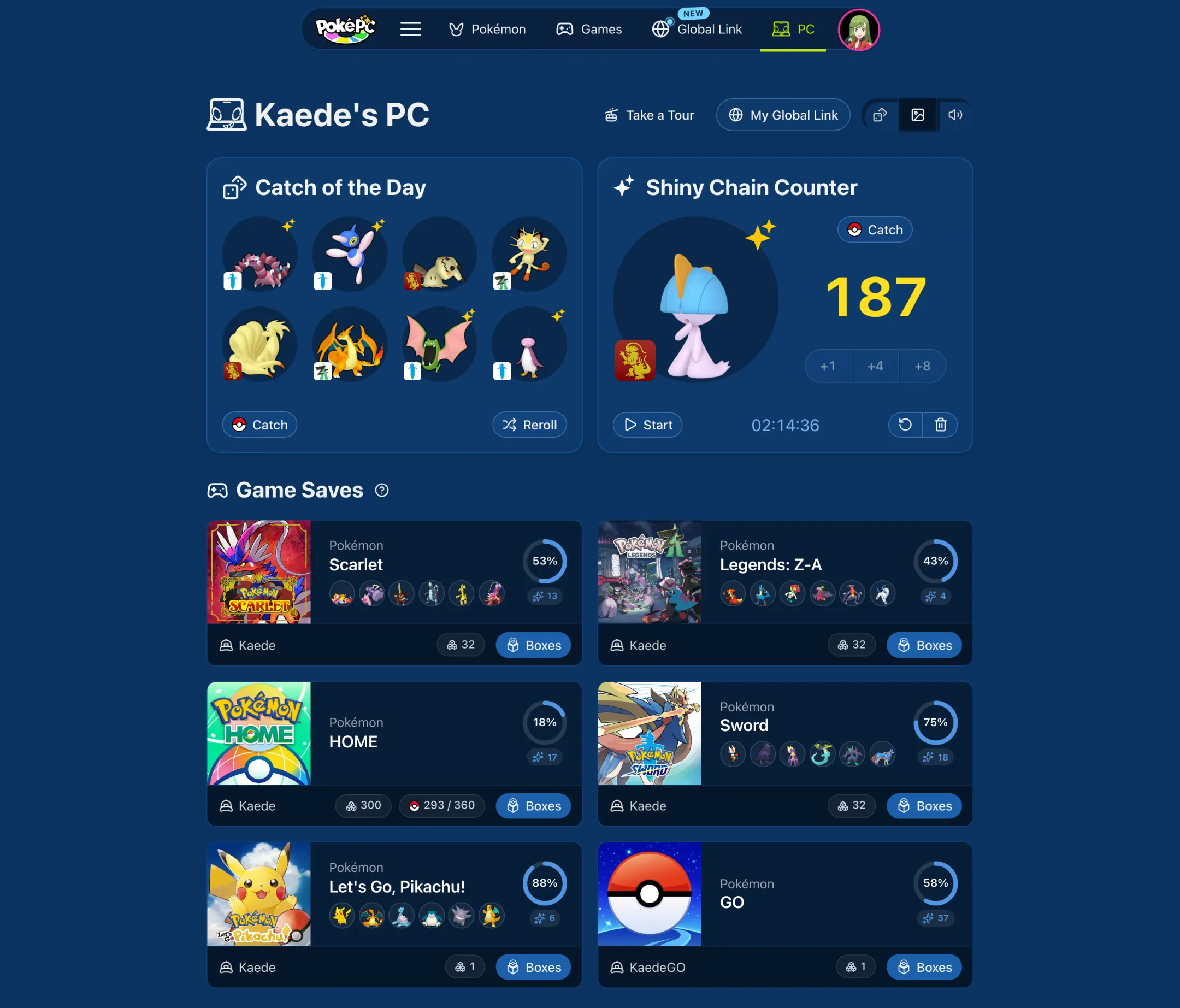
My PC is your collection desktop. Everything starts with a game save: a PokéPC record for one adventure, such as your Scarlet playthrough, your Pokémon HOME collection or a Legends run. You do not upload a console save file. PokéPC does not connect to your Nintendo account or read Pokémon HOME; you enter what you catch.
 View larger
Choose Add Game Save, pick the game and enter the trainer name and six-digit ID you use there, plus optional notes. Keep separate saves for separate playthroughs, and use a HOME save to plan a collection that brings Pokémon together from several games. Each card shows the game, trainer, team, Pokédex progress and when it was last updated. The card opens the game save page, and Boxes opens the box organizer directly; games without box storage show Open instead.
My PC also has a few optional extras. None of them connect to your game, and you can ignore them:
- Catch of the Day picks eight Pokémon you have not caught yet from your saves, some of them as shiny targets. Choose Catch and tap one to mark it caught, or Reroll for a new set. Each save opts in with Include in the Catch Challenge in its settings.
- The shiny chain counter keeps the encounter count and time of a hunt for a Pokémon in one of your saves. Catch registers the shiny in that save's Pokédex when your hunt pays off.
- The buttons in the header change your wallpaper (an image kept in this browser only), turn sounds on or off and show or hide the mini-games. My Global Link opens your posts and sessions, and the ? button reopens the collection guide from onboarding.
The game save page
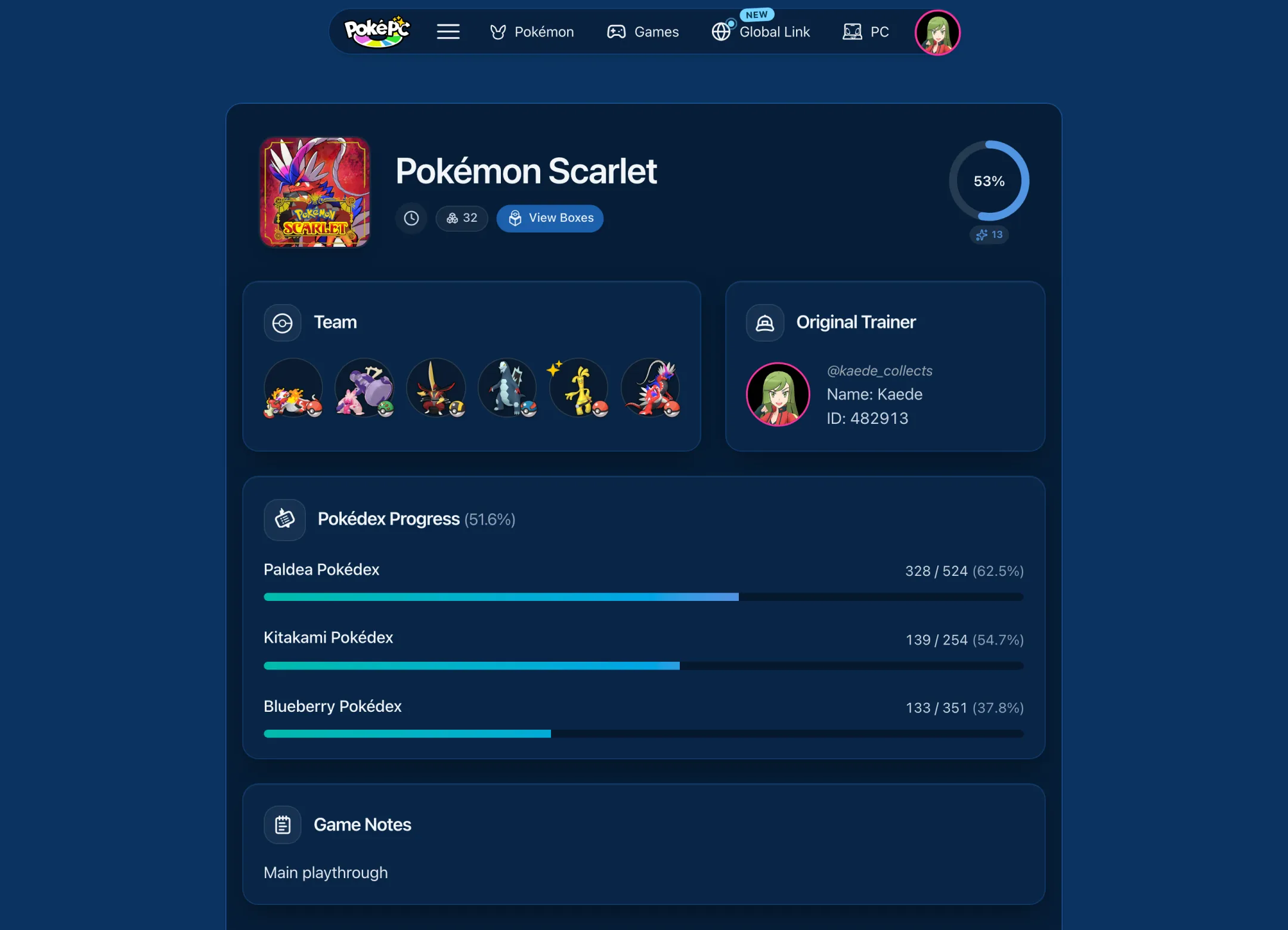
A game save page gathers one adventure in one place. It shows the game, when the save was started and last updated, how many boxes are in use, and your overall Pokédex progress. Other Trainers can open it too, if your privacy setting allows them.
 View larger
- The Team holds your current party in games that support teams. Edit it right on the page; it saves automatically.
- Pokédex Progress lists each of the game's Pokédexes with its progress and a link to its tracker. A completed dex earns a crown.
- Game Notes and the Original Trainer card show your notes, trainer name and ID.
- View Boxes opens the organizer. Edit changes the trainer details, notes and Catch of the Day settings; the game itself cannot be changed. Delete removes the save with its Pokédex progress and boxes, after you confirm.
Pokédex trackers
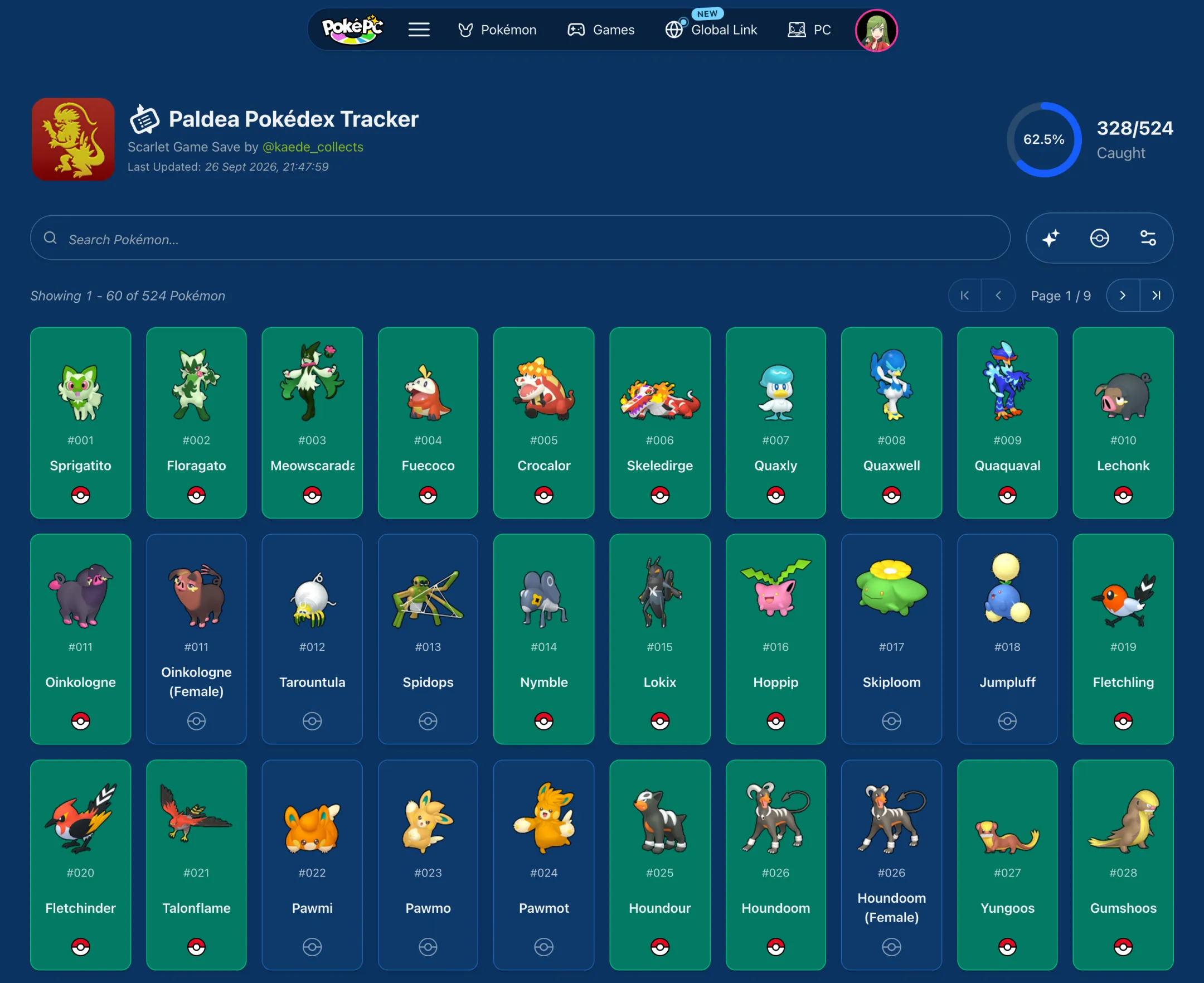
A Pokédex tracker answers one question: have I caught this Pokémon? It is a checklist for completing a game's Pokédex, such as the Paldea dex in Scarlet and Violet or the National dex in HOME. Tap a Pokémon to mark it caught, and the progress ring updates as you go. Changes save automatically.
 View larger
- Shiny Mode switches to a separate shiny checklist. Marking a shiny does not also check off the regular version.
- Search finds a Pokémon by name or number, and Hide Caught in the display options leaves only what is still missing.
- Track Forms and Track Cosmetic Forms, in the Poké Ball actions menu, choose which forms count toward completion. The same menu has Catch All and Reset Progress.
A registered Pokémon stays registered even after you evolve it, trade it away or move it to another game, just like the in-game Pokédex.
The box organizer
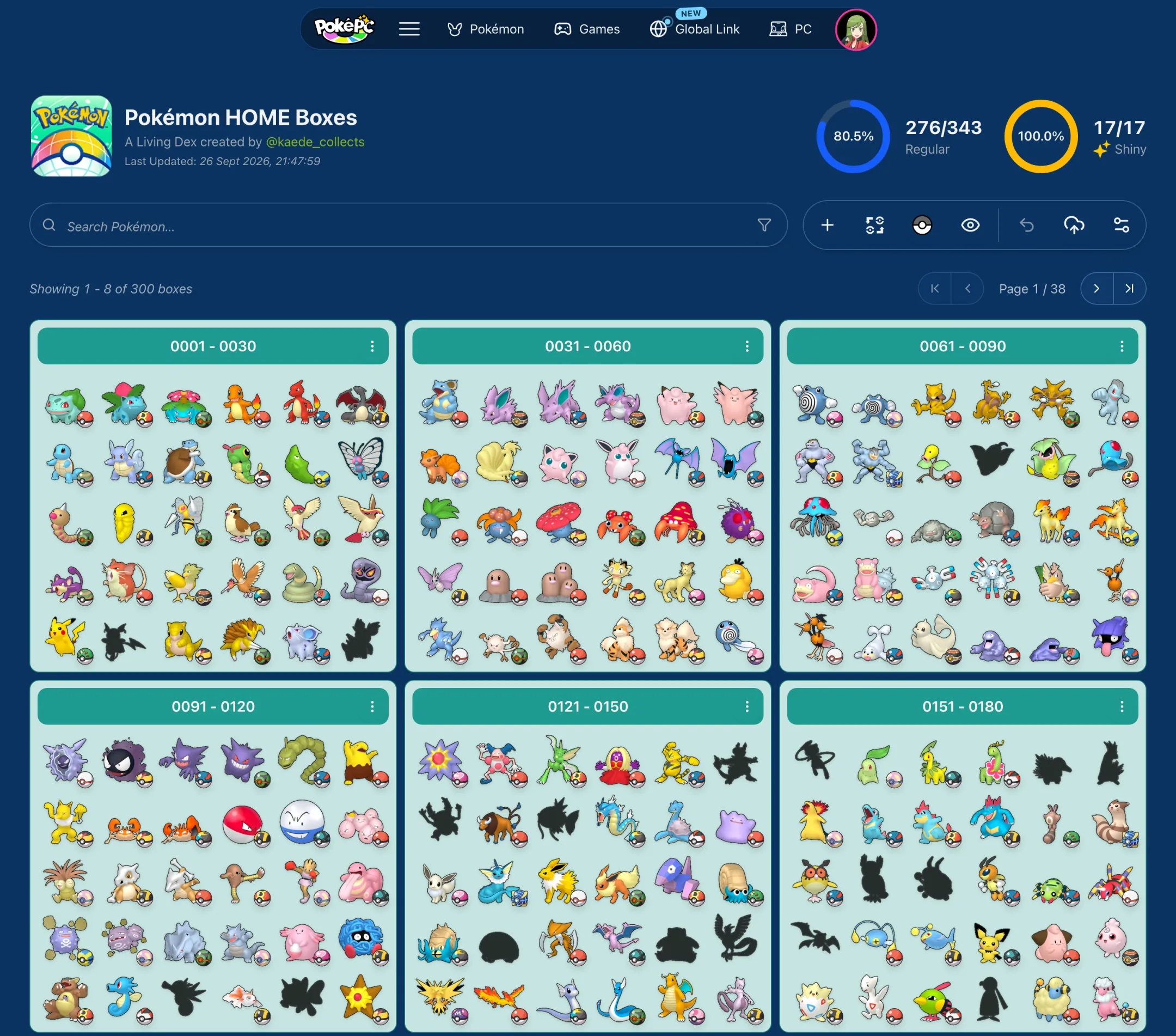
The box organizer answers a different question: what do I have, what am I missing, and where does it belong? It works like the boxes in your game. Plan a layout, keep separate entries for duplicates and variants, and record details about each Pokémon. A Living Dex, one of every Pokémon kept at the same time, is the classic goal, but the organizer also suits a shiny collection or a single regional dex. The Living Dex guide explains the idea in more depth.
 View larger
Every slot tells you something at a glance:
- An empty slot has nothing planned.
- A Pokémon without a Poké Ball is planned: it belongs there, but you have not caught it yet.
- A Pokémon with a Poké Ball is caught and boxed.
- A Pokémon with the Blank Ball is the one exception: it does not count as caught or boxed. It is yours to give a meaning, such as an in-between step like caught but not yet boxed or ready to transfer.
To mark one caught, open Pokémon Tools → Pokéball, choose a ball and tap the Pokémon. Pick the ball it was actually caught in, or the Green Ball if you only want a checklist. Apply the same ball again to mark it missing, or use Release Pokémon to remove the entry. Other tools add Pokémon, move and clone them, toggle the Shiny Marker, and set sizes and origin marks.
You do not have to build a Living Dex by hand. In Settings, Apply a Box Preset fills the boxes with a prepared layout, and Generate Box Preset lets you choose the order, which forms to include and a regular or shiny arrangement. Reuse what I have keeps the Pokémon you already recorded. For a classic HOME layout with the main species first, follow the HOME layout steps.
Unlike the tracker, the organizer waits for you: choose Save to keep your changes, or Undo to return to the last saved version. Display Options switches between the familiar Boxed view and a Continuous view that shows the whole collection as one scrolling grid. Search and Sort Pokémon help you find entries, Pin box keeps favorite boxes at hand, and Create image from boxes downloads a picture of your pinned boxes to share. Members can also fill a whole box with one tool and filter by Ribbons, Marks, ball, origin, trainer and more.
Saving caught Pokémon in boxes also registers them in the matching Pokédexes of that same save. Ticking a Pokédex entry never creates a Pokémon in your boxes, so you can use either tool on its own.
Find what you are missing
Your trackers and boxes also answer the bigger question: which Pokémon am I still missing, across all my saves? When you are signed in, the My Collection menu of the National Pokédex filters every Pokémon by what you have recorded:
- Registered checks your Pokédex trackers. No leaves the Pokémon that no tracker has registered yet.
- Boxed checks your boxes. No leaves the Pokémon that no box holds with a Poké Ball, so planned entries without a ball and the Blank Ball still count as missing.
- Shiny switches both checks to your shinies.
Set both to No to see what is missing everywhere, or set only one to find the gaps in your trackers or in your boxes. The filters combine with the rest of the page: Exclude forms leaves only the main species, and search, type, color and generation narrow the list further. Boxes count once you save them.
The filters are kept in the page address, so a view you like is a link you can bookmark:
- Missing Pokémon: not registered and not boxed anywhere.
- Missing shinies: shinies you have not recorded yet.
- Missing from your boxes: registered, but not boxed yet.
- Missing species: the same list without forms.
My PC has shortcuts to the first two, View missing Pokémon and View missing ✨ Pokémon, just above your game saves.
Pokémon details
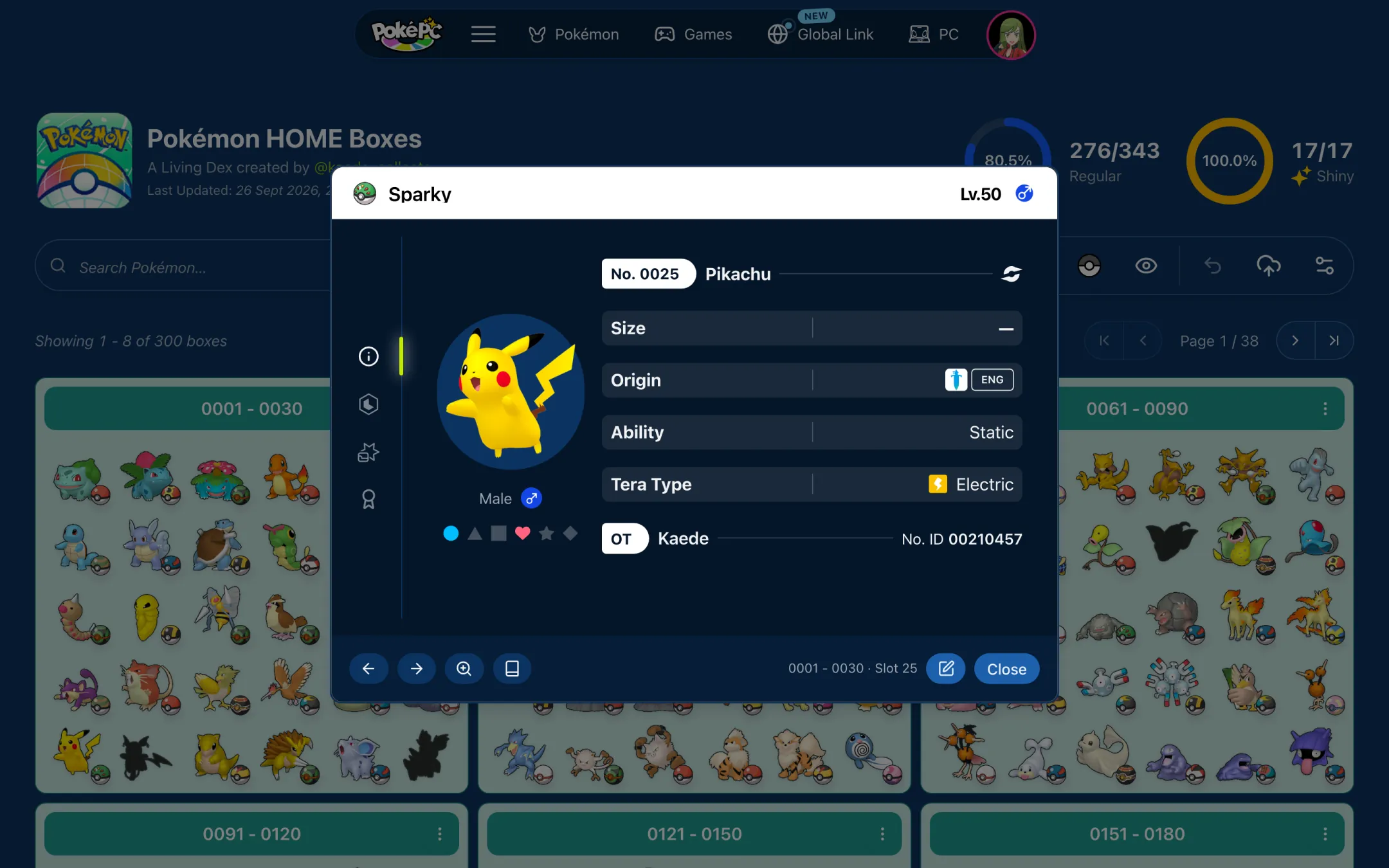
Tap any Pokémon in your boxes to open its details: nickname, level, gender, nature, ability, held item, moves, stats, Ribbons and Marks, and special traits such as Gigantamax, Alpha or Shadow, whichever the game supports. Choose Edit Pokémon to change them, then save the collection.
 View larger
The same details view appears wherever Pokémon are shown, from a game save's team to profile Wish and Offering boxes and Global Link posts, so it always reads the same way. The fields adapt to the game: Ribbons and Marks appear where the game has them, and training details such as effort values follow each game's rules.
Your trainer profile
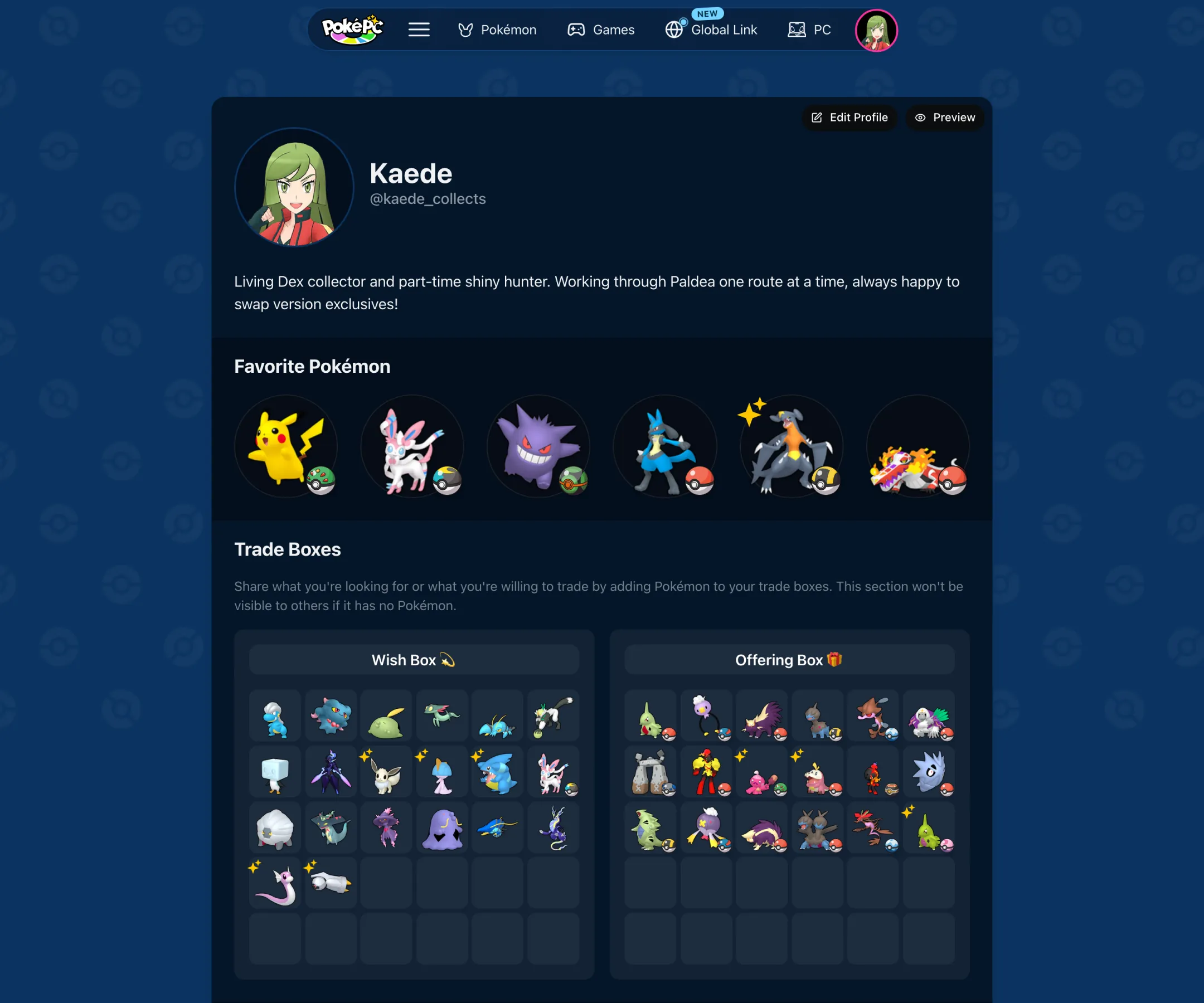
Your trainer profile is your page on PokéPC, shown to others as far as your privacy setting allows. It shows your avatar, display name, username, color, bio and social links, and a grid of your game saves with their Pokédex progress. Three optional boxes, edited right on the page and saved automatically, tell others more about you:
- Favorite Pokémon holds six Pokémon. Tap a slot to add one and drag to reorder them.
- The Wish Box 💫 lists up to 30 Pokémon you are looking for, such as a version exclusive or a shiny.
- The Offering Box 🎁 lists up to 30 Pokémon you can offer, such as spare starters or duplicate shinies.
 View larger
Each Pokémon in these boxes can carry the same details as a boxed one, from its ball and nature to its moves. The boxes are separate from your game saves: adding an offer does not move a Pokémon out of your boxes or arrange a trade, it just lets others know. Empty boxes are hidden from visitors.
Edit Profile takes you to your settings for the avatar, color, names, bio and social links, and Preview shows the page the way visitors see it.
Settings
Settings gathers your account in tabs:
- My profile and Socials edit your avatar, color, username, display name, bio and social links.
- Appearance sets the language of Pokémon names, the site theme (Blue or Neutral) and 2D or 3D sprites.
- Membership shows your plan, its limits and how much of them you use, and Linked Apps connects Patreon and your Classic SuperEffective.gg account.
- Privacy chooses who can see your activity, as described above.
- Email changes or verifies your address, and Security lists your signed-in devices, manages passkeys and, if you ever need it, deletes your account.
Global Link
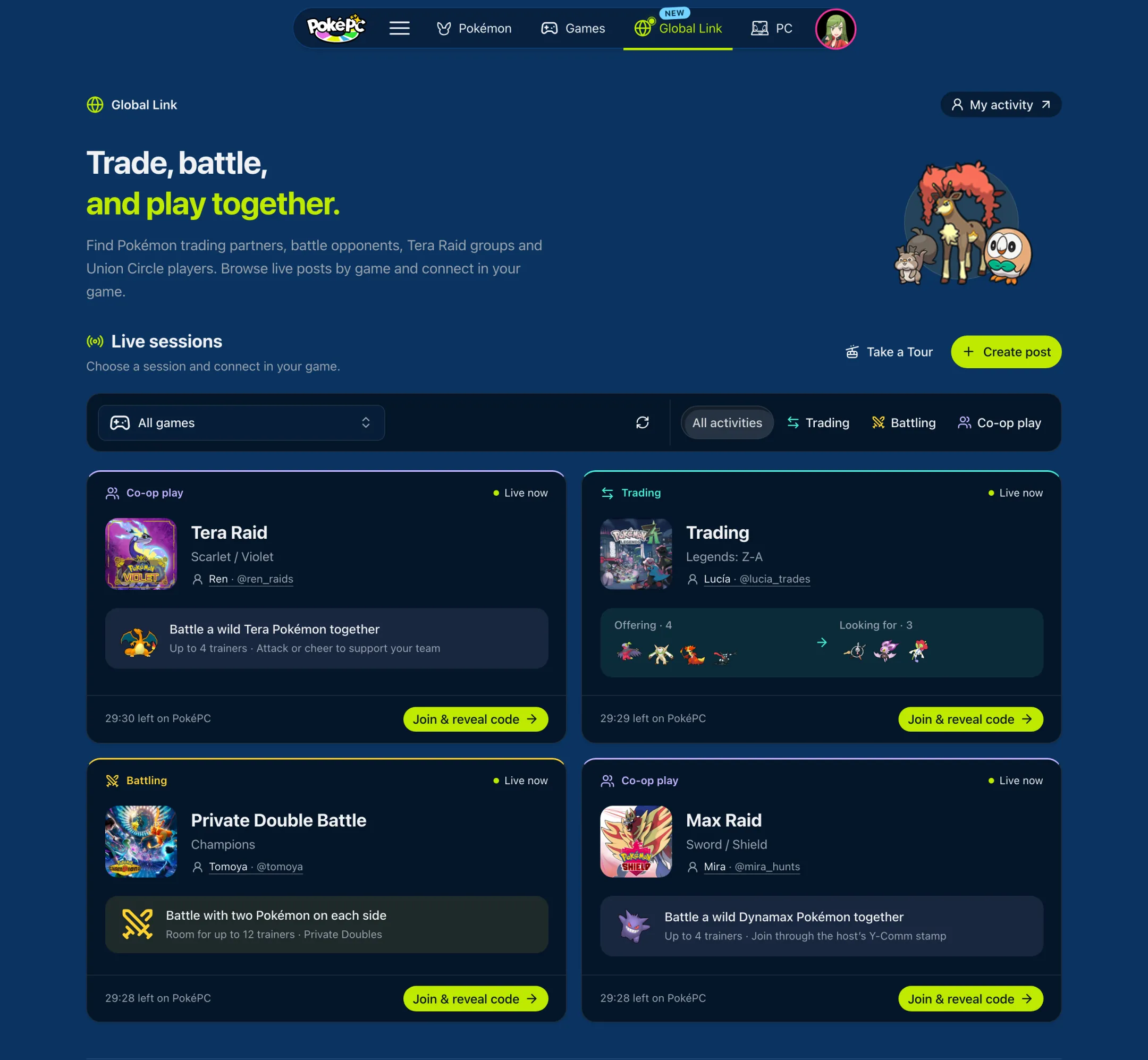
Global Link helps you find Trainers to play with online. Hosts post a session for a supported game and activity, such as trading, a raid or a battle, and other Trainers join it.
 View larger
Anyone can browse the posts and filter them by game and activity. To join, sign in and choose a compatible game save; PokéPC then reveals the connection code and how to enter it in that game. The trade or battle itself happens in the game, not on PokéPC. If a code does not work, Report wrong code tells the host and leaves the session.
To host, create a post from one of your game saves with the activity, the connection code and, for trades, up to six Pokémon you offer and six you are looking for. Save it as a draft or go live for 5, 15 or 30 minutes. Drafts are free; going live uses one of your monthly posts, and you can go live again later with the same post. Your posts and the sessions you joined stay under My Global Link, and the notification bell tells you when Trainers join or leave.
Reference and guides
PokéPC is also a Pokémon reference you can use without an account.
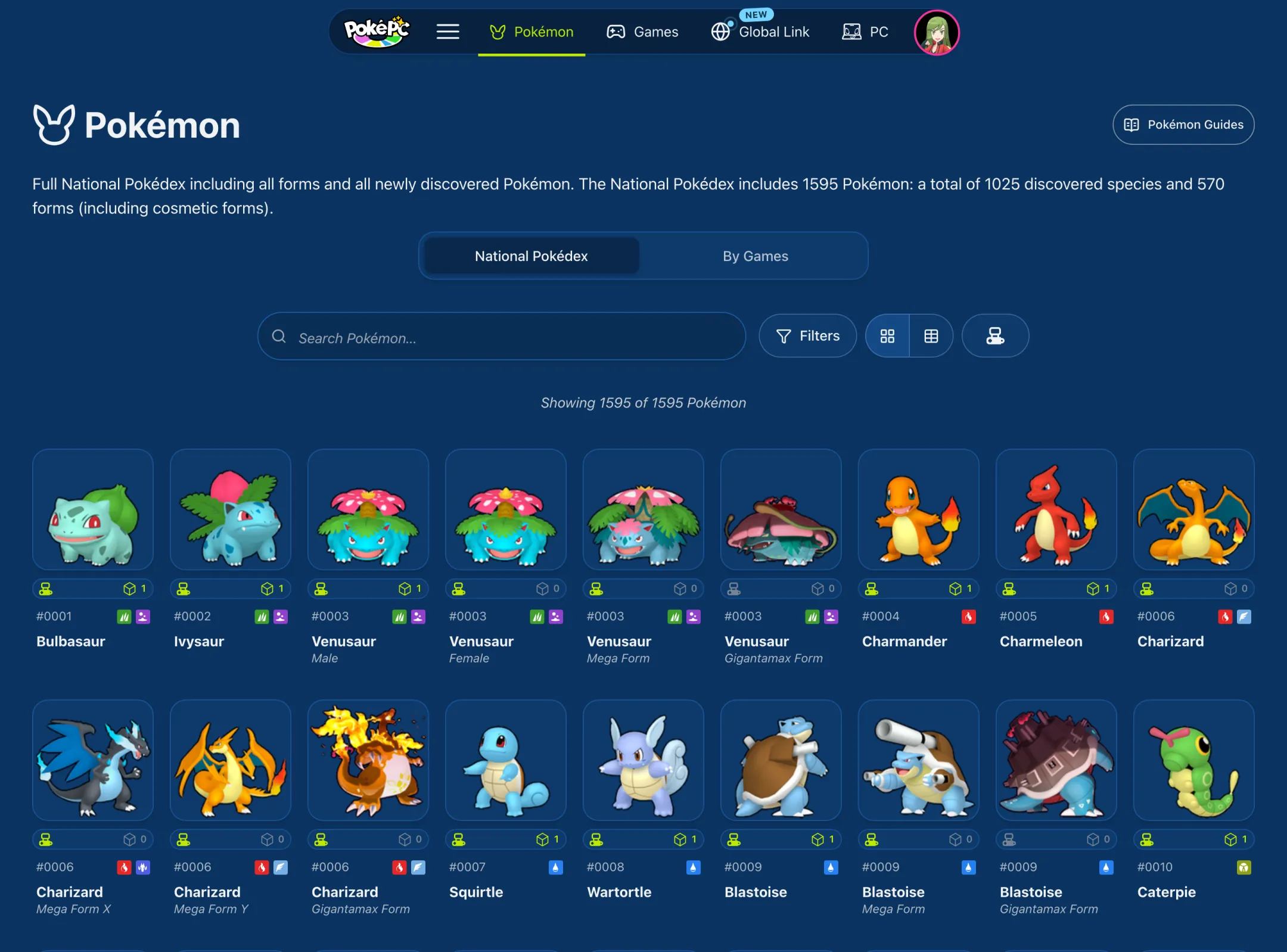
- The National Pokédex lists every Pokémon and form with search and filters for type, color and generation, as a grid or a sortable stats table. Its By Games tab shows what you can catch in the games you own.
- Each Pokémon page shows its types, abilities, base stats, evolution family, forms, and where it can be obtained, including events and shiny-locked games.
- The game references show each game's platform, box capacity, Pokédexes and which Pokémon are obtainable, transfer-only or unavailable, with a shortcut to create a game save for it.
- The Guides collect Pokémon guides about groups, forms and evolution methods, and searchable references of every move, Ability, item, Ribbon and Mark.
 View larger
When you are signed in, the Pokédex can filter by what you are missing across your saves, and each Pokémon page shows which of your saves have it and where it is boxed.
Coming from Classic
If you used PokéPC Classic or SuperEffective.gg, sign in with the same email address. Your Classic Living Dexes appear on My PC under Classic Living Dexes. If you already have a separate PokéPC account, link your Classic account in Settings → Linked Apps.
Choose Migrate on a Classic dex to create a new PokéPC game save from it, with its boxes and, optionally, its Pokédex registrations. Migrating never changes or deletes the Classic original, and the two are not synchronized afterwards. The Classic FAQ covers the details.
Free and Patreon plans
The Pokédex trackers, the box organizer and every supported game are free. Patreon memberships support PokéPC and add higher limits, such as more game saves, more stored Pokémon per save, more Global Link posts each month and unlimited Ribbons and Marks per Pokémon, plus extras like box titles and colors, filling a whole box at once and advanced box filters. See Membership Plans for the current allowances and your usage in Settings → Membership.
If a membership ends, your data stays yours. Nothing is deleted or hidden, and the lower plan's limits only apply to new additions. Link Patreon in Settings → Linked Apps after joining, and manage billing on Patreon itself.
Notifications, help and feedback
You do not have to remember all of this. Take a Tour on My PC and Global Link, or in the Settings of a Pokédex tracker or box organizer, walks you through that screen with examples that leave your collection unchanged. The FAQ goes deeper into each feature, and our Discord is the place for help and collecting chat.
The notification bell in the header collects replies to feedback posts you follow and Global Link activity on your sessions. Found a bug or have an idea? Issues & Feedback lets you search existing posts, vote on them, comment and follow them, or submit your own. The Roadmap shows what is planned, in progress and recently completed, and Status tells you when PokéPC is in maintenance.